27 Essential FOSS Packages Our Animation Studio Relies On
Graphics
Four tools I use to create 2D graphics, which can be used as decals, textures, animation cels, billboards, or backdrops in animated scenes, as well as diagrams and other images I use for documentation.
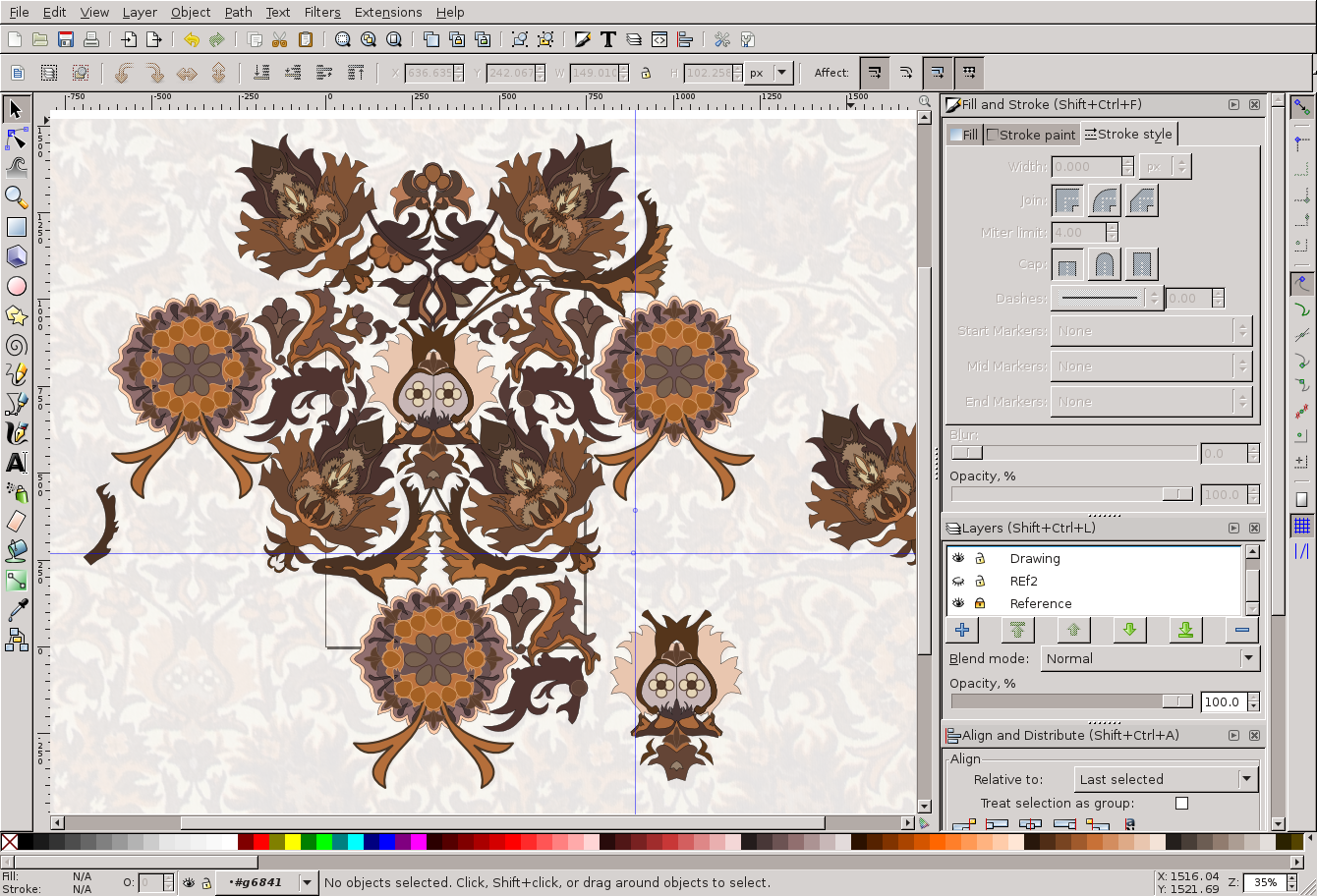
Inkscape
A vector graphics editor (edits SVG documents).
I use this in a lot of different ways whenever I need a drawing:
* Presentation slides
* Graphic illustrations/diagrams
* “Decal” graphics for 3D textures
* Layout of images or other graphics
* Video poster/cover graphics
* Book design
Also included in most desktop Linux distributions, I believe.
Gnu Image Manipulation Program
Known as #GIMP or as #GnuIMP by those who don’t like the other name.
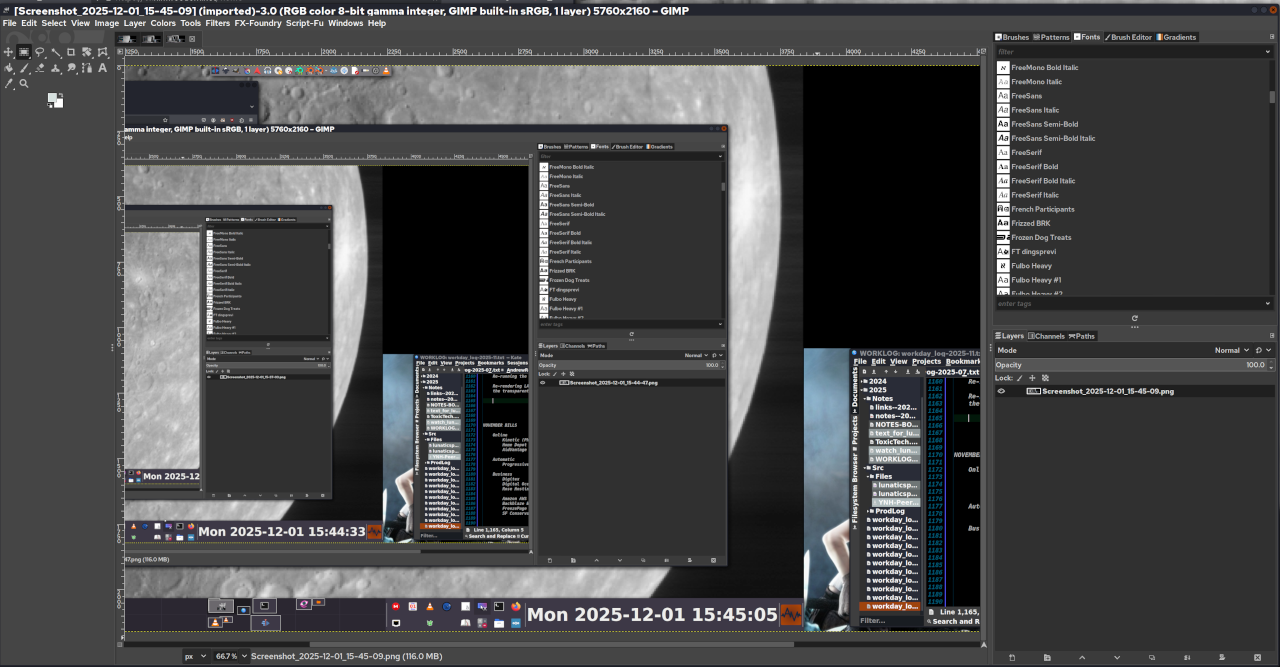
This is my go-to tool for basic image processing of photos and images for publication. It’s a pretty common workflow for me to crop and/or enhance photos in Gimp and then load the output into Inkscape for layout work.
Also, FWIW, I learned it before I learned Photoshop, which frankly seemed kind of like a backward step to me, particularly in the way that Photoshop filters never seemed to have any controls (at the time — this was 25 years ago and I haven’t used Photoshop since then).
Which fuels my general belief that terms like “more intuitive” or “more powerful” are mostly a function of what you are familiar with.
It’s one of the earliest graphics creation software packages I learned on Linux, and so it’s become so much second nature that I hardly think about it anymore.
These days I use it all the time to crop and rescale screen captures, so I’ve attached one of cropping a screencap of itself.
Krita
I think it’s particularly important to mention Krita in the context of Inkscape and Gimp to differentiate them. For a long time, I basically thought of Gimp and Krita as competitors, but they serve different goals:
Gimp is, as the name says, for “image manipulation”, whereas Krita is a DIGITAL PAINTING application. It is more focused on creating the art in the application than on tweaking existing elements. And while Krita and Gimp have limited vector art capabilities, they come nowhere near Inkscape in that category.
Since I’m not much of a digital painter, though, I have not really put Krita through its paces, nor trained myself extensively on it.
My daughter HAS, and she creates a LOT of character art using it. So she is the real Krita expert in the family. The “KitCAT” logo below is one I commissioned from her as a studio mascot.
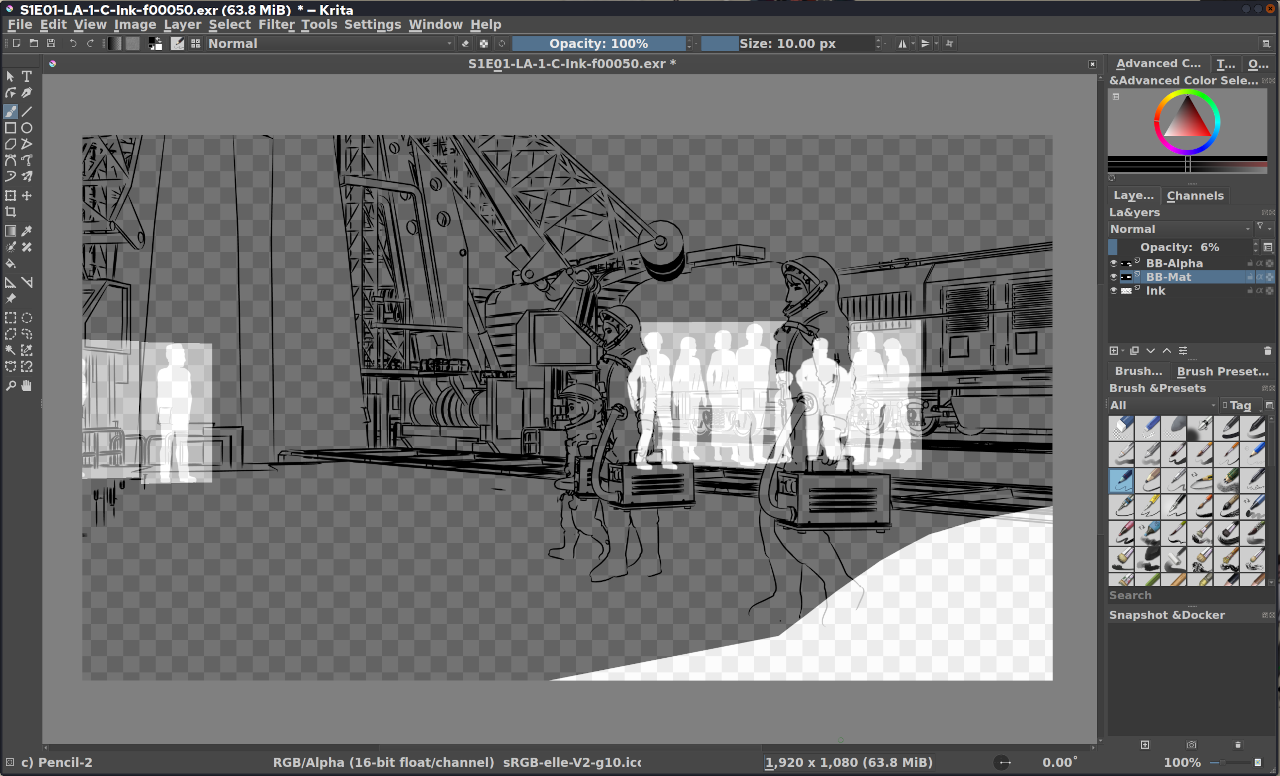
But it has some other useful features for me — the one I use the most is that it can open 16-bit graphics I use for some backdrop textures in Blender and also the Multilayer EXR files generated from Blender. This makes it the easiest way for me to check them (the attachment below shows a recent “Ink” render, including masks for “billboard extras”).
ImageMagick
This is actually a small suite of tools that can be used from the command line, although it also has a GUI interface. Pretty old school software; been around for ages; still very handy.
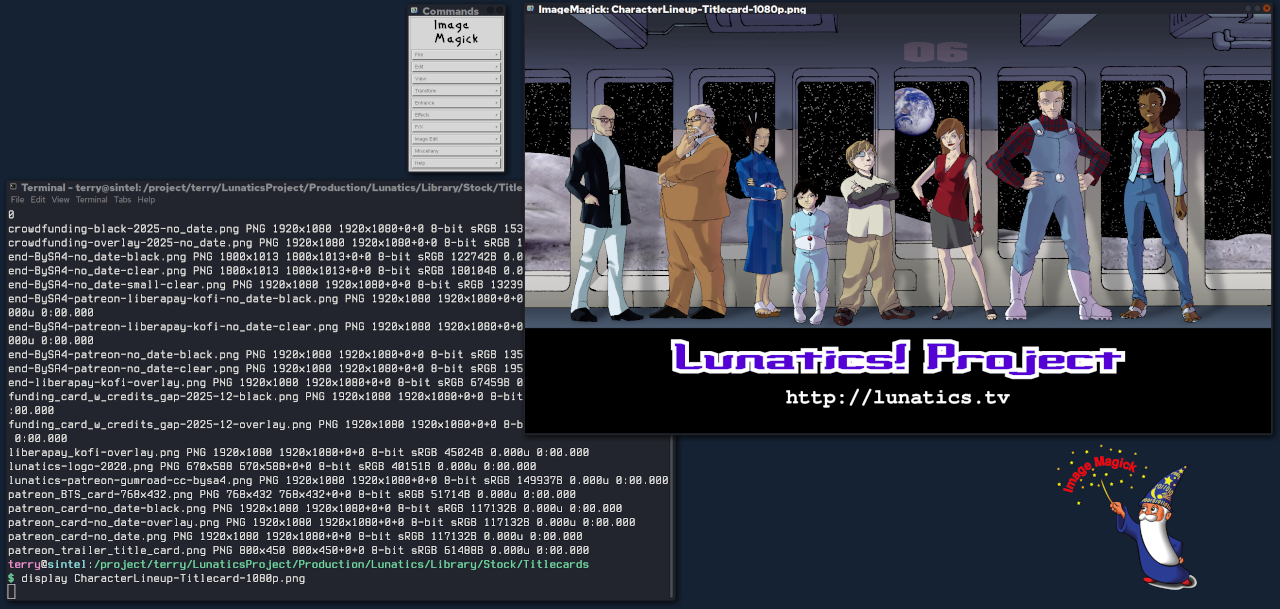
Not as powerful as Gimp or Krita for manipulating a single image, but with ImageMagick and a bash script you can make changes en masse (“convert” and “mogrify” — which does the job in place). You can quickly check the format and size of images from the command line (“identify”) or simply pop up the image with “display”.
Finally, with “compose” you can make an image combining multiple images in many different ways, including making a grid with or without labels.
I don’t use it as much as I used to, but it is still the simplest way to check image content from the command line. And it’s really the only option when you need to change a whole lot of images at once.
Also often used on server back ends to manipulate images for display in web applications.
Open Camera
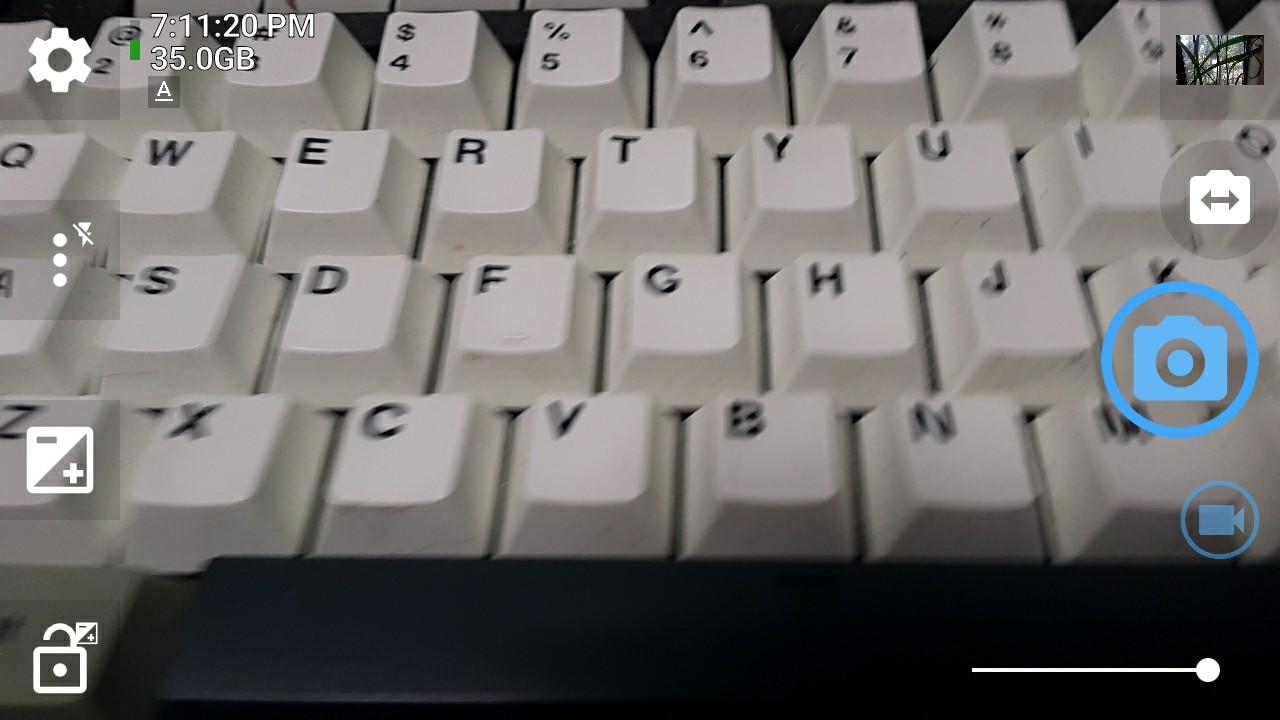
This an Android smartphone app from the F-Droid repo: Open Camera.
I use it to record the “real life” parts for my daily logs. A particularly useful feature is the “photo stamp” so I have the date and time on screen.
https://f-droid.org/packages/net.sourceforge.opencamera/
Gwenview
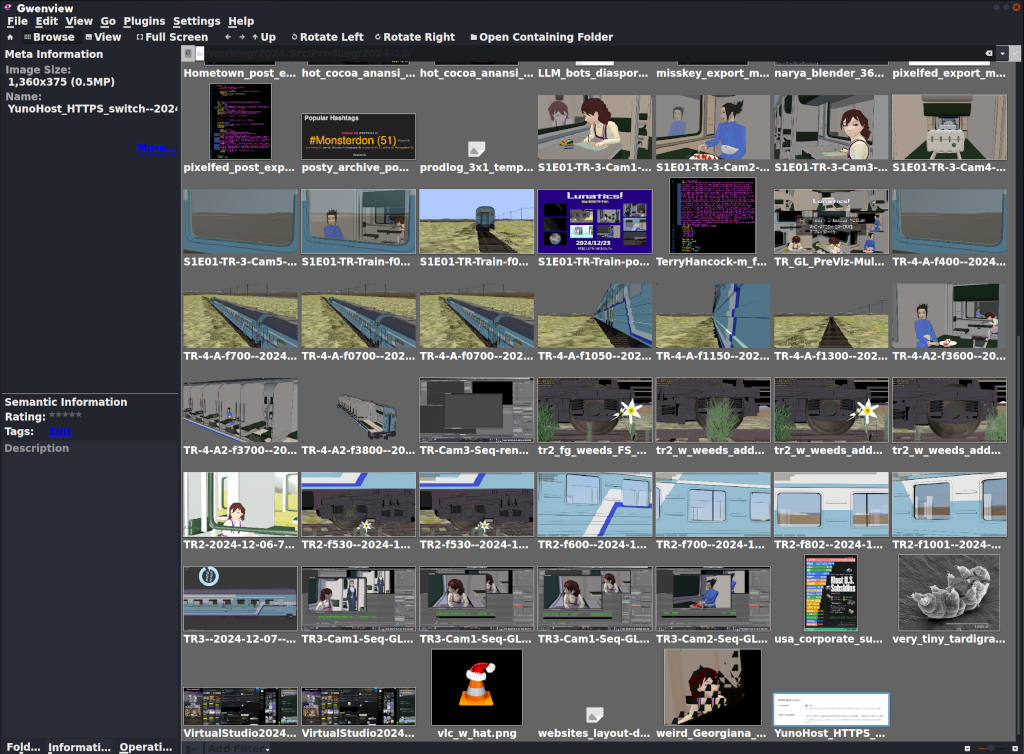
For this list, I’ve been trying to focus not so much on the most exciting applications as the ones I use so often I forget they exist — and Gwenview definitely fits in that category. I literally use it every day.
It’s an image/multimedia browsing utility. Ostensibly for KDE, although I routinely use it in XFCE.
In any case, it’s very low-maintenance and the fastest way for me to check out a tree of images — whether they’re PR collections or a series of frames in a PNG stream. Helps a lot when I’m looking for an image and can’t quite remember what I called the file.
I’ve tried some other image browsing apps, but this is the one I keep coming back to.
https://apps.kde.org/gwenview/
Modeling and Animation
These two programs are involved in the process of modeling 3D environments, characters, and props, and then animating them.
Blender
This one’s a gimme. Blender is the single most important free software tool in my project toolbox.
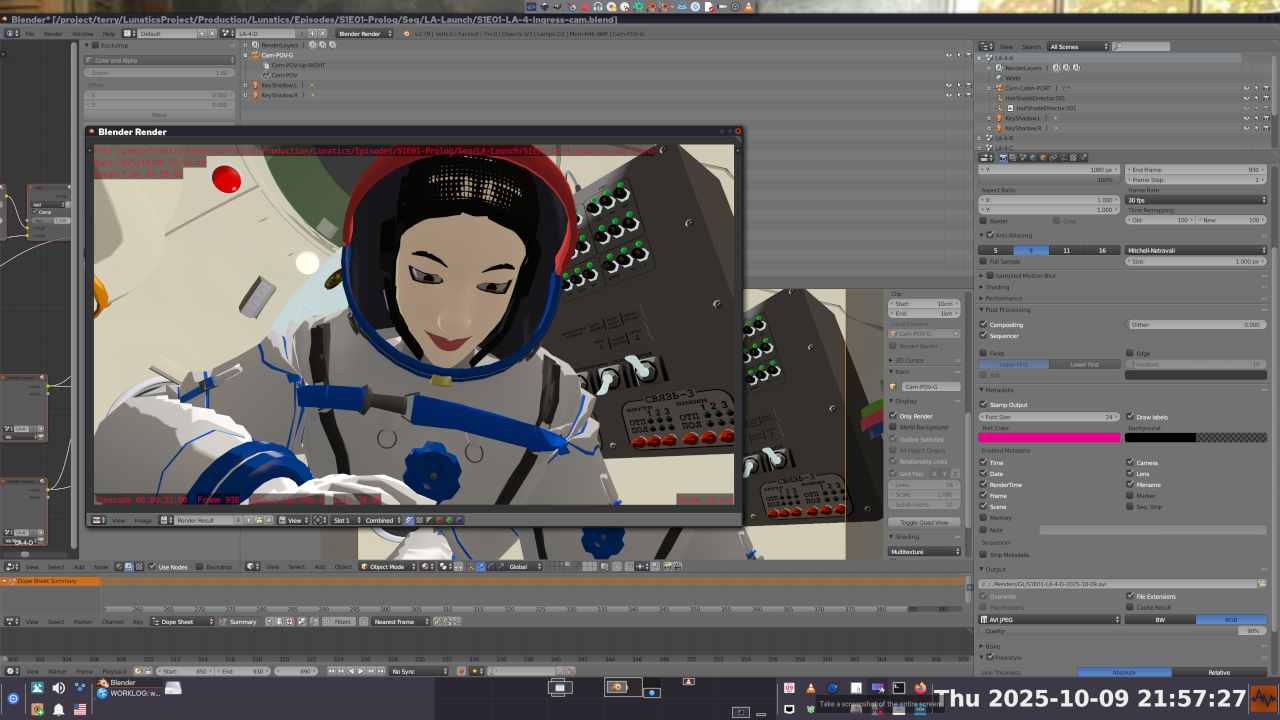
Weirdly, I still use Blender 2.79, because I built my project on the “Blender Internal” render which they removed in 2.8 (more about that in a comment). Meanwhile Blender is on at least v4 now.
I’m sure you’ve heard of it, but you may not realize Blender’s full scope. It is designed to be a complete 3D animation suite in one package:
* 3D surface modeler
* Materials editor, shader, rendering engine
* 3D armature & shape key animation
* 2D annotations
* 2D “grease pencil” animation tool
* video clip editor with rotoscoping and tracking for VFX work
* video sequence editor for editing clips together
It is pretty complete, and many people have made animated films entirely in Blender, although it can also be integrated into a pipeline with other tools, as I’ve done on Lunatics Project.
It’s popular with indy film makers and Hollywood alike.
Papagayo NG
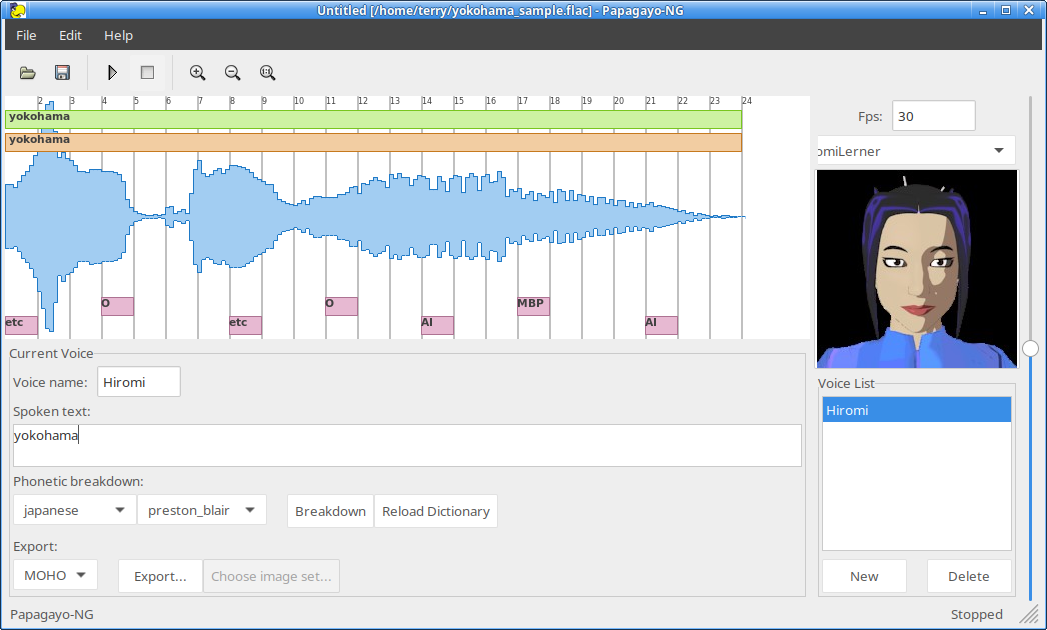
This one fills a very important niche in my pipeline. It is a tool to make it much easier to line up lip movements to speech.
This is not an AI tool and does not do the alignment for you, but it makes it much it easier to do.
We used this extensively in “Lunatics!”, particularly for the long dialogues in the Press Conference.
Morevna Project maintains this program, which is a fork of the original “Papagayo” with some enhancements. Hence the “NG”:
https://morevnaproject.org/papagayo-ng/
Audio Production
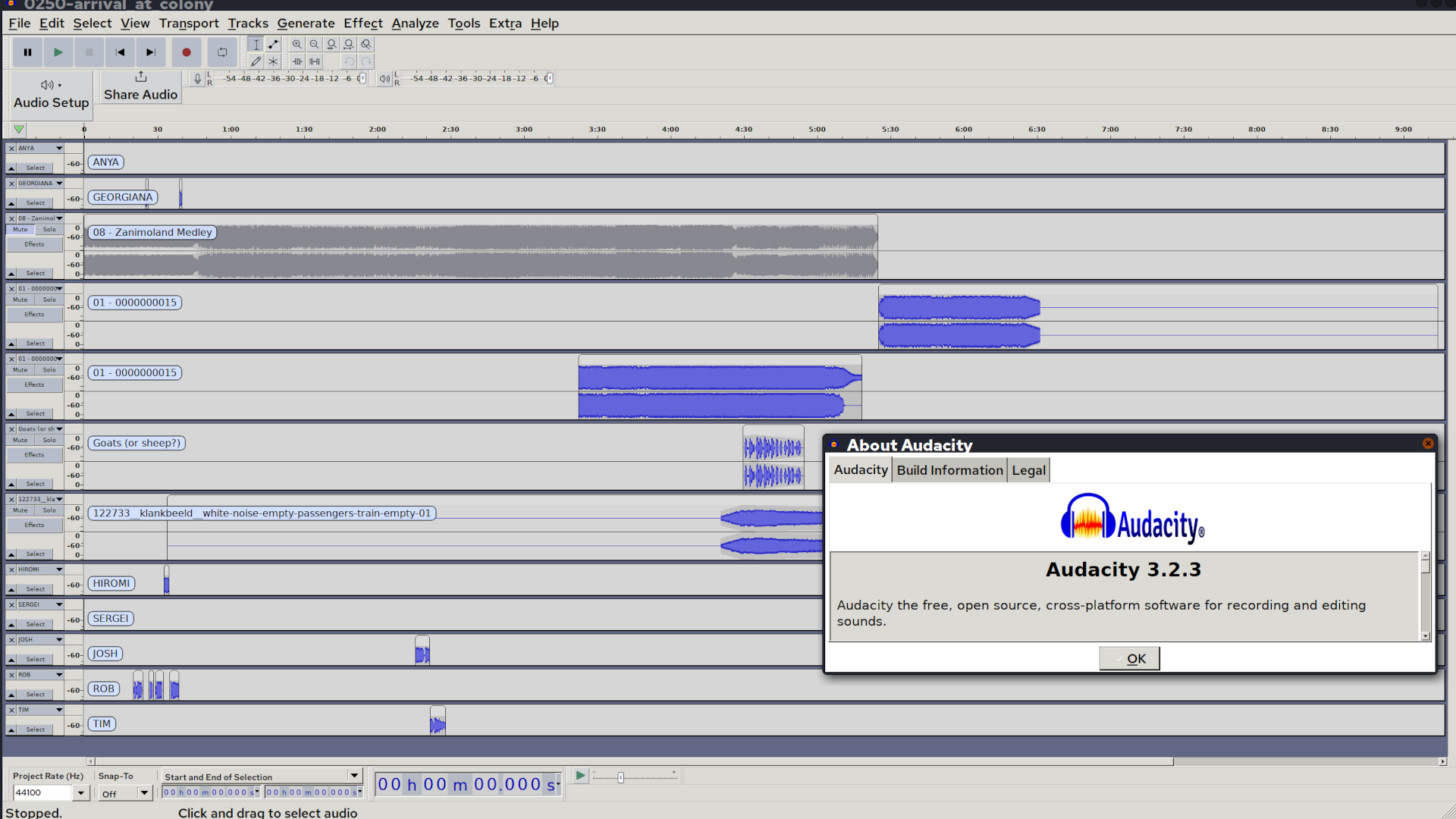
Audacity
Another old one! I think I’ve been using Audacity for about 25 years, now.
It is a “destructive audio editor”, which means it is kind of the audio equivalent to a bitmap editor in graphics — you are actually changing the values of the samples in the recording when you make changes, rather than applying filters on top of them as non-destructive editors do.
This makes Audacity particularly good at constructing sound effects from recorded sources.
I do most of my audio processing in Audacity, but even if I do involve a non-destructive “DAW” platform, I would probably continue to use Audacity for creating effects and recording voices.
It is an excellent tool for recording audio directly or reviewing and selecting audio from field recordings.
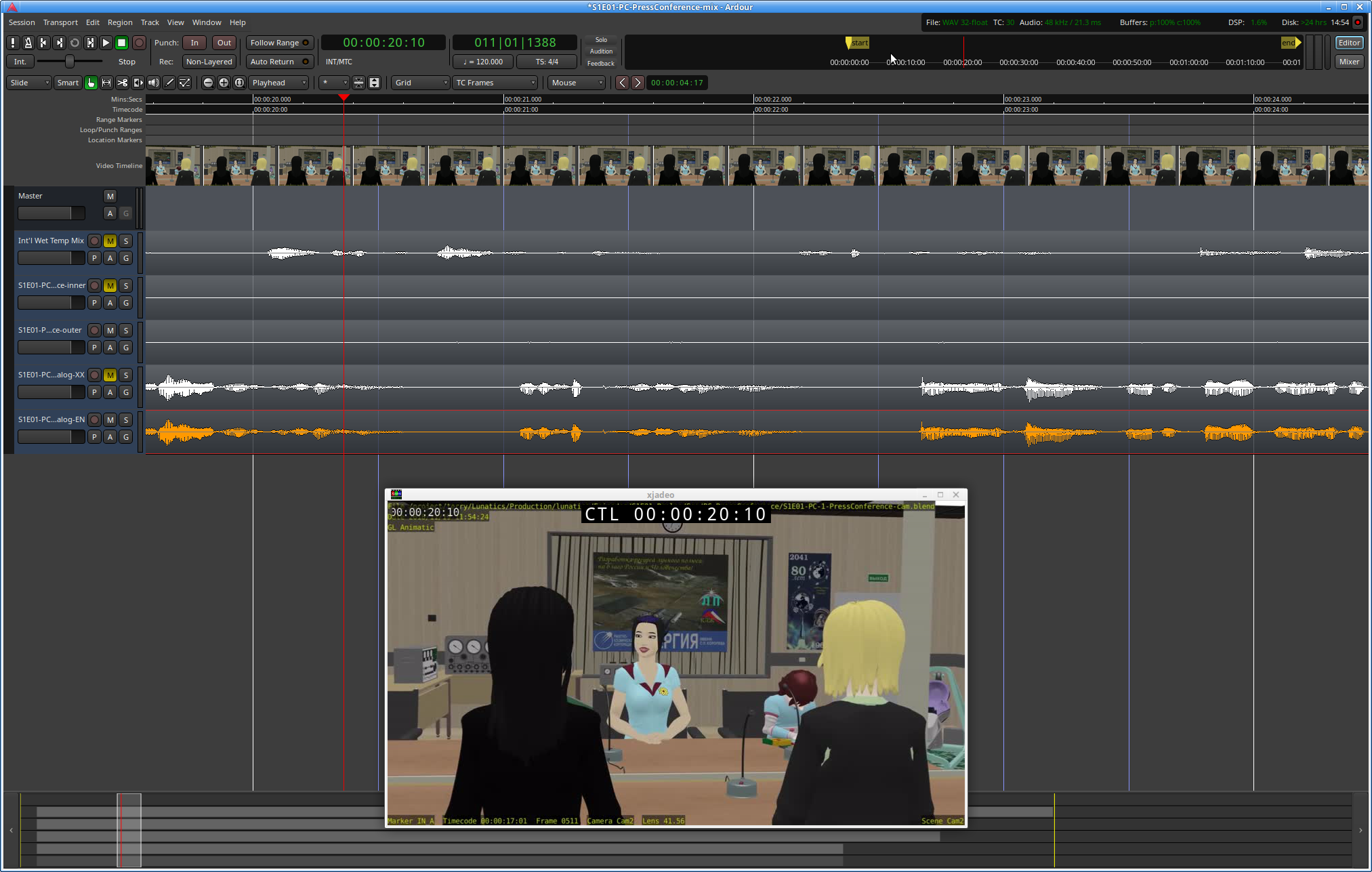
Ardour
I still haven’t used Ardour very much, but my plan is to use it to balance and fit the audio “stems” created in Audacity to the video, and to balance channels for 5.1 surround sound.
Video Production
These programs help me to work with video: to edit, view, transform, master, and publish.
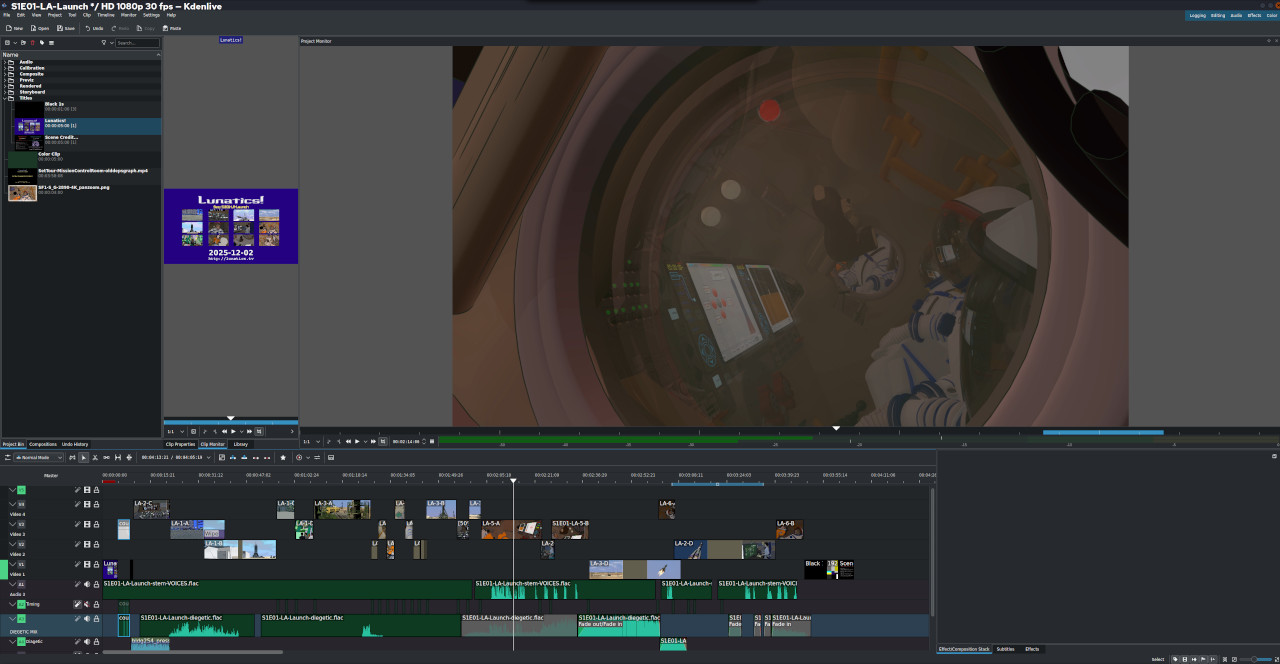
Kdenlive
I’m pretty sure this is that rarity among modern software package names — an *actual* acronym for (I think): “K Desktop Environment Non-Linear Interactive Video Editor”.
Well, in any case, that’s what it is, so it fits.
This is a pretty featureful video editor and it is my choice for editing everything from my daily screen logs to my animated project, “Lunatics!”
It’s difficult to overstate the importance of this one to me.
The only notable flaws are that it does crash more often than I would like (but it recovers very well), and it might be on the slow side for rendering. Definitely good to use “proxy workflow” for high-definition projects. Which I do.
I’m using v22.12. I believe the most recent is v25.08 stable or v25.12 testing.
Vokoscreen
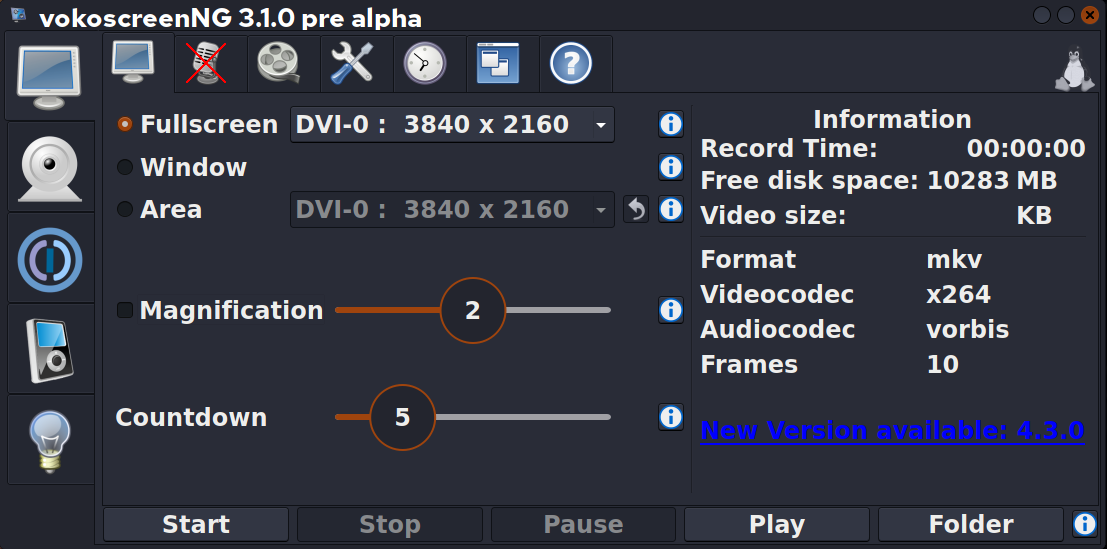
I use my special script for daily screen recordings, but I started by using Vokoscreen, and I still use it when I want to make a more intentional screen recording (often at a faster rate like 10fps).
Vokoscreen gives me the flexibility to choose what part of the screen I want to record, frame rate, whether I want to record audio from microphone or output from the system. Which is what I need.
There is also OBS Studio, which I know some people love, and which has more options for live-streaming. But I don’t do that. I record, and then I edit. So it’s just more complexity than I need.
Upstream:
https://linuxecke.volkoh.de/vokoscreen/vokoscreen.html
But I just get the Debian package:
https://packages.debian.org/trixie/vokoscreen-ng
VideoLAN Client (VLC)
Some distro maintainers apparently hate it. It is very customizable, which results in multiple and frequent UI changes.
But damn is it useful! I MUST have it.
I have found very few video formats that VLC won’t play, at least if you install all the codecs (some of which are non-free, which is why you have to install them later — but that’s not VLC’s fault).
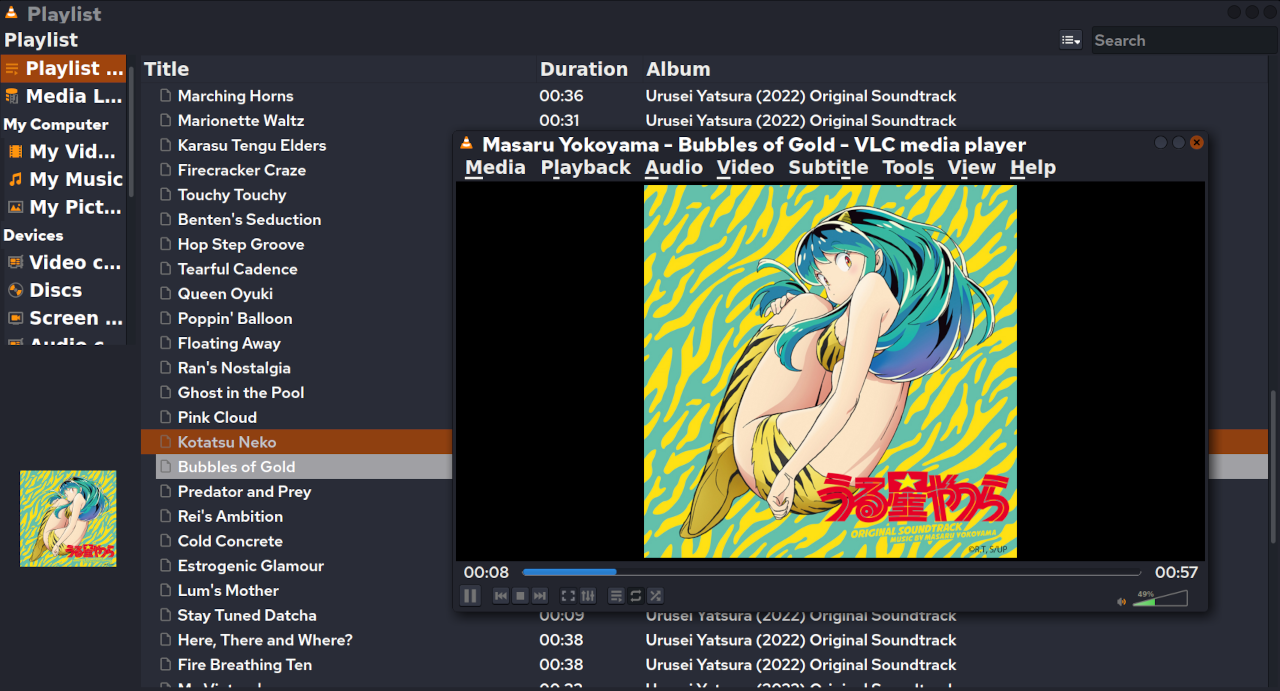
It is my usual music player, and video player. I use it to check my newly-edited videos.
Somewhere in there is a way to edit metadata in files — I know I’ve used it, though not in a long time.
And if I go to “Media?Convert/Save”, it can convert video formats, which can be a life-saver.
If my computer should shut down suddenly, my screenlogging script will produce a corrupted video. VLC can read it and convert into a corrected format that other programs can read. Handy!
FFMPEG
Under the hood, most open-source multimedia application software relies heavily on ffmpeg — either the core libraries, or its scriptable command-line interface.
The man page is HUGE. Why there are so many GUI front-ends!
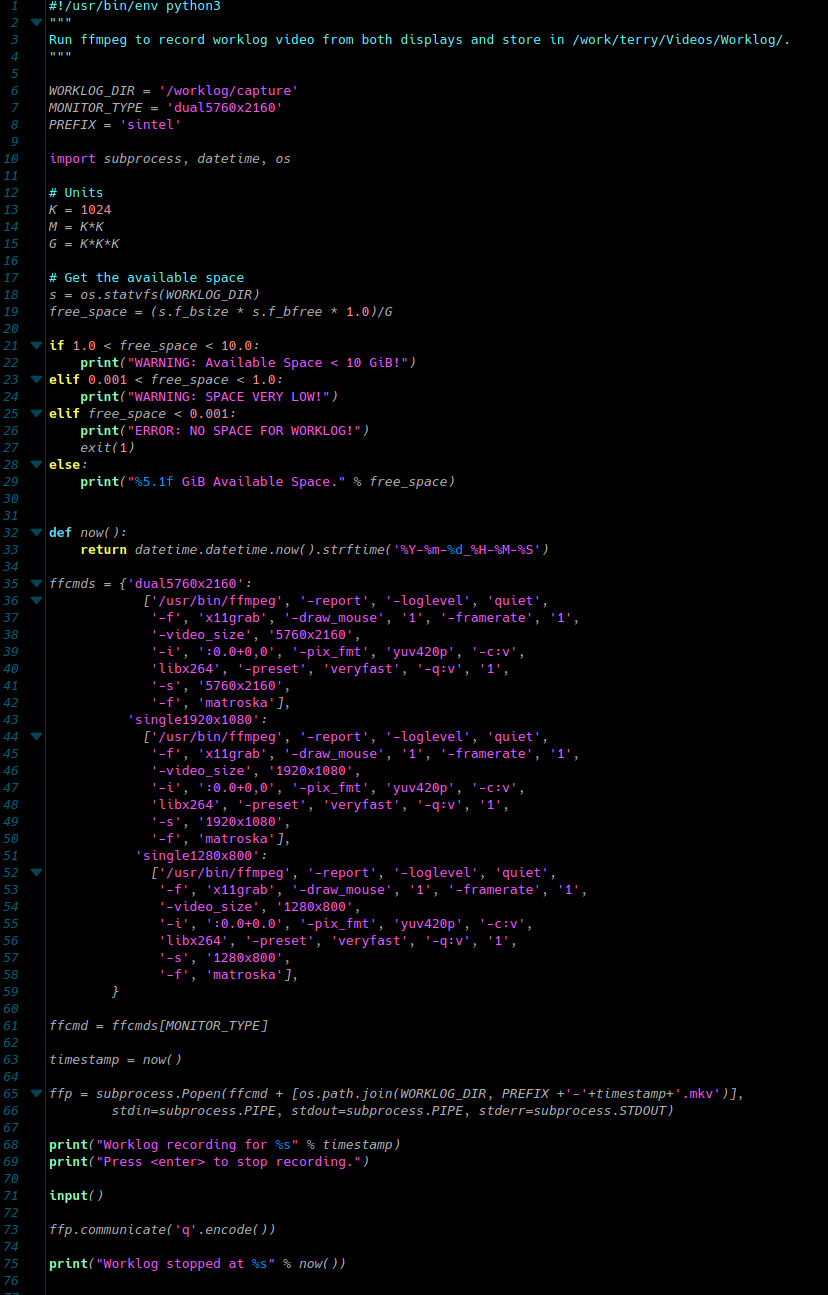
For daily use, I wrote a 75-line Python script that calls FFMPEG to record my whole virtual screen at 1 FPS to log my workdays.
It sends something like this to FFMPEG:
/usr/bin/ffmpeg -report -loglevel quiet -f x11grab -draw_mouse 1 -framerate 1 -video_size 5760x2160 -i :0.0+0,0 -pix_fmt yuv420p -c:v libx264 -preset veryfast -q:v 1 -s 5760x2160 -f matroska /worklog/capture sintel-2025-12-13_13-37-37.mkv
MKVToolNix
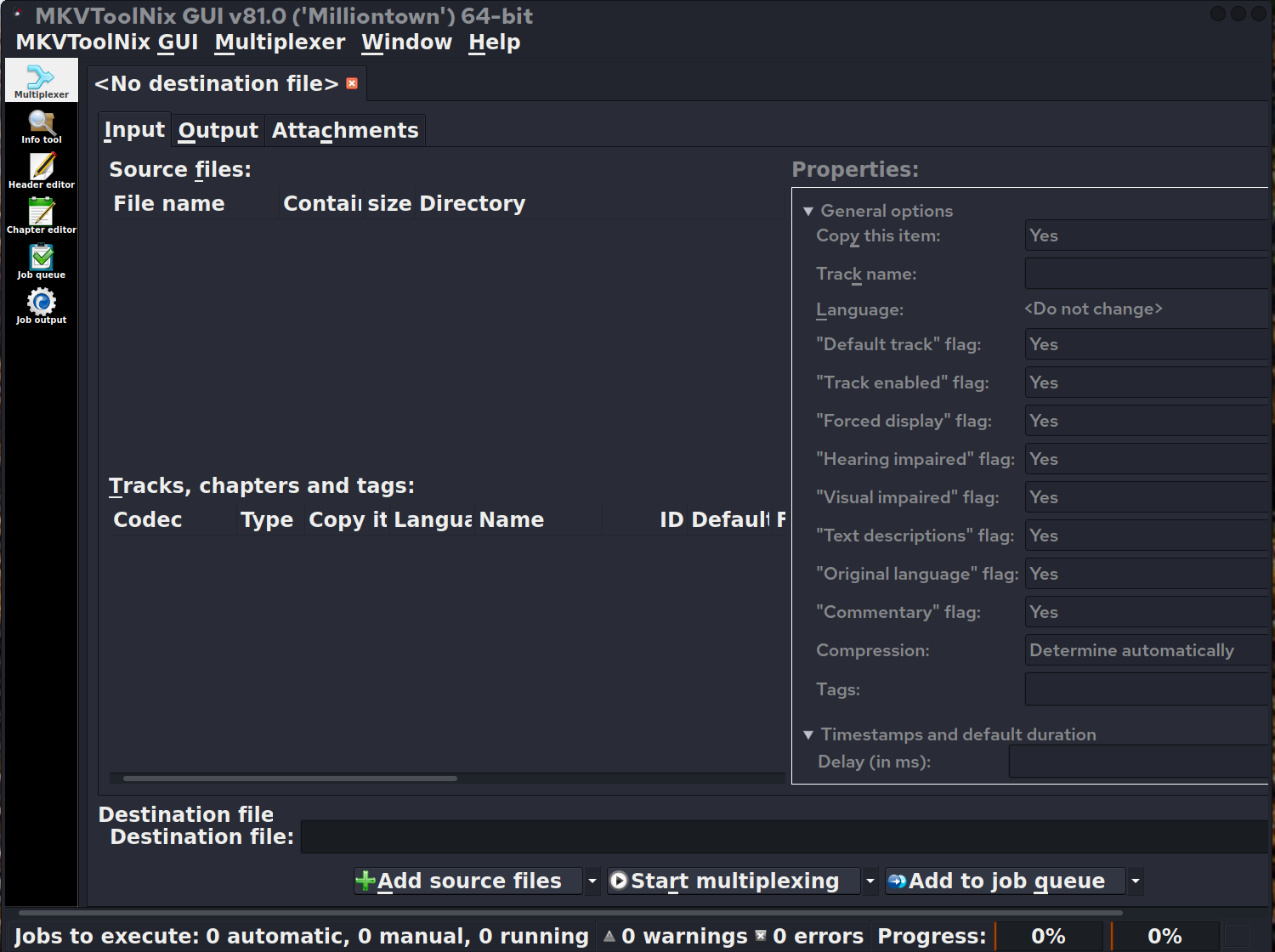
This is a tool kit of utilities, including a GUI front end, for manipulating Matroska streaming multimedia files (usually “MKV” or “MKA” files).
The Matroska container format allows for multiple audio, video, and text streams, which means you can encode a video with multiple options for audio and subtitles (as well as alternate video tracks).
It also supports setting up “Chapter” marks.
A must-have for authoring and checking complex videos for streaming and download use.
DVD Styler
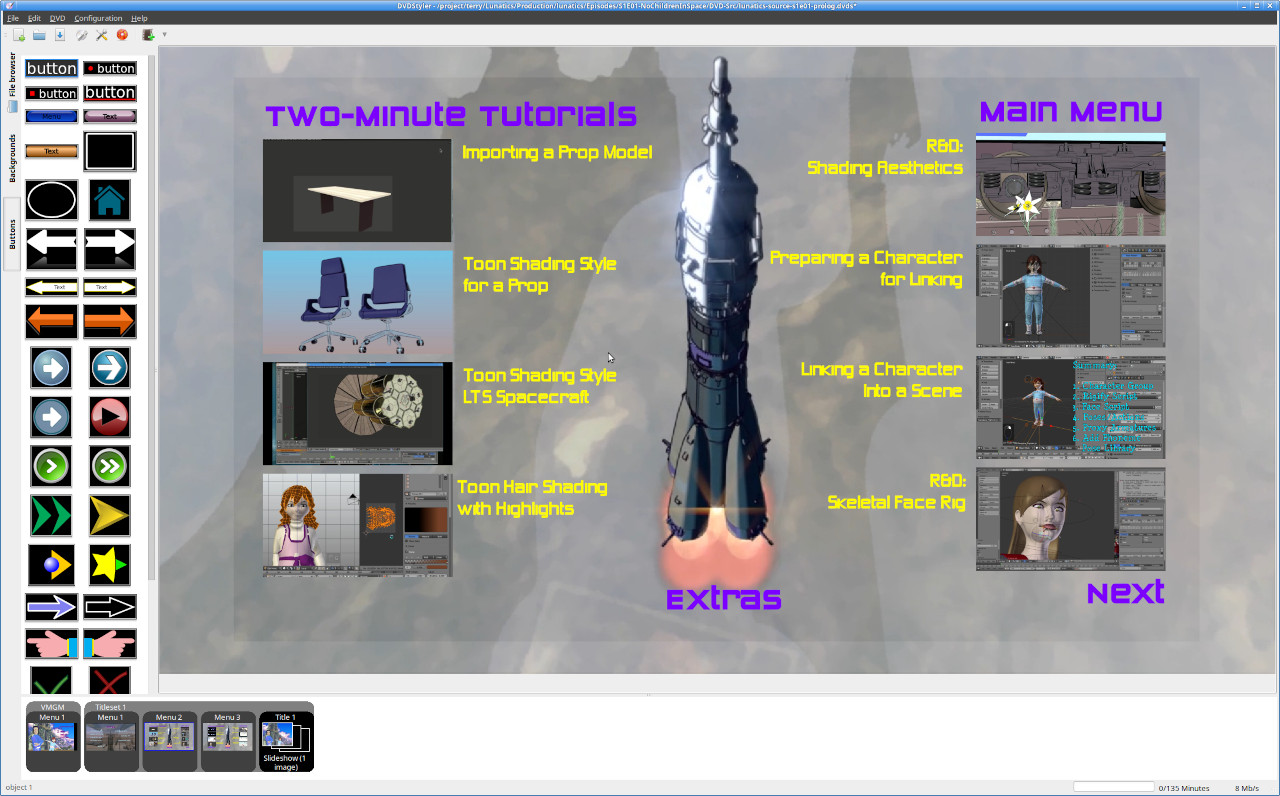
When I want to master my own DVD, with menus and easter eggs and all the other goodies, DVDStyler is my tool of choice.
It provides a grapthical front-end for DVDAuthor, and supports most of the features you’d expect to be able to create on a DVD (I think there may be a few gaps, but I haven’t found them limiting).
The program does have simple default templates which makes it easy to whip up a simple DVD for your home movies, but I usually want something more complex and original, so I start from scratch.
https://sourceforge.net/projects/dvdstyler/
Also see DVDAuthor, the backend:
https://dvdauthor.sourceforge.net/
K3B
My head-canon is that it stands for “KDE Burn Baby Burn”. I may have heard that somewhere, but not sure.
In any case, it’s my favorite software for ripping and burning optical media: CD, DVD, Blu-Ray. Or you can just create the ISO image.
This is the final stop for me for authoring a DVD release.

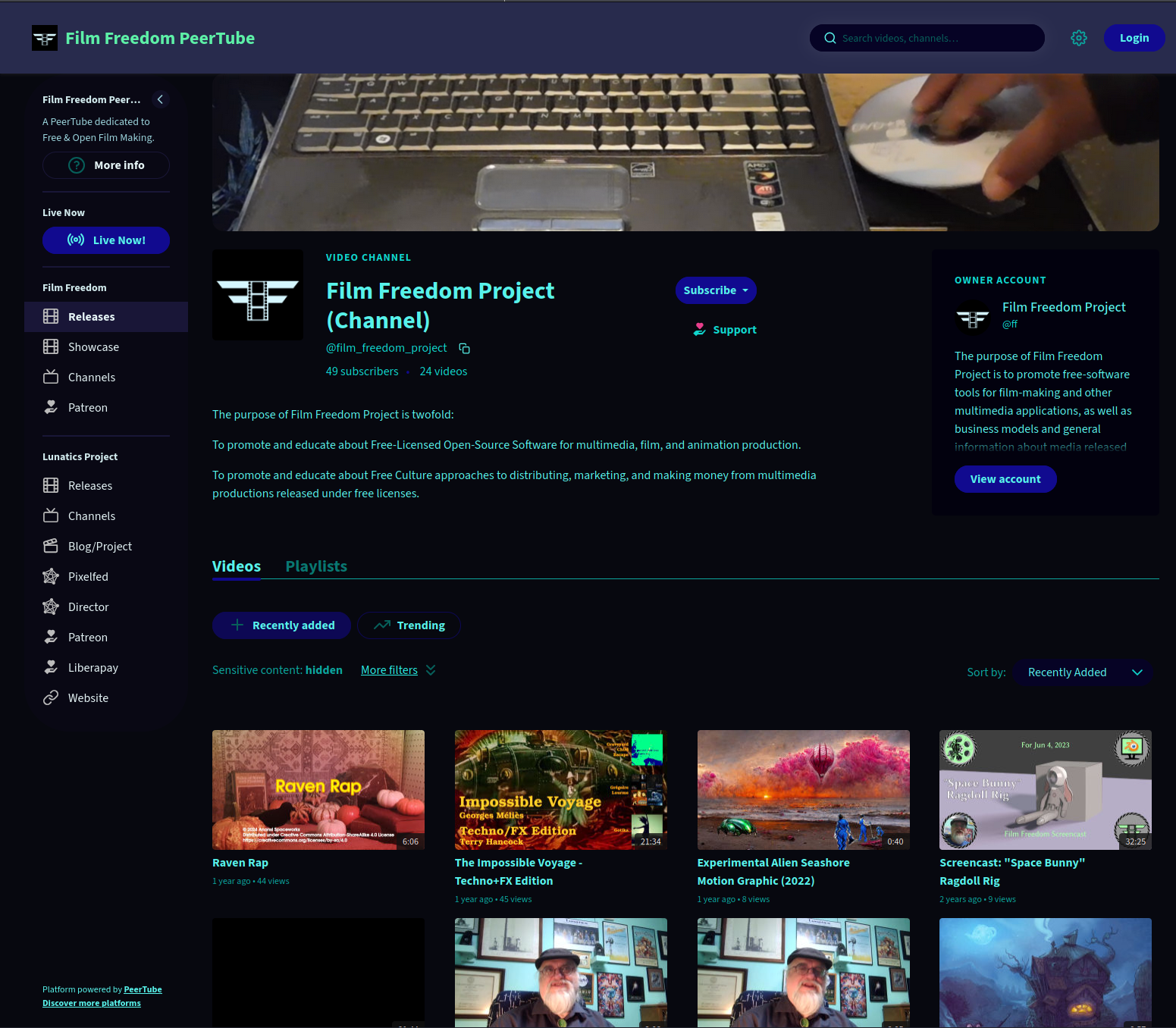
PeerTube
PeerTube is the main federated video publishing platform, with an interface similar to YouTube, DailyMotion, Vimeo, etc.
Videos are federated like other posts on the Fediverse, as are comments.
It supports many channels and playlists per user.
Discoverability is still a little weak, and the total volume is small compared to the corporate behemoths, but we do have Framasoft’s “Sepia Search” service, and the PeerTube universe is growing.
Our PeerTube server is probably the 2nd most important web application I’m running on our server. This has become my primary publication point for both “Lunatics!” and “Film Freedom”.
https://joinpeertube.org
https://sepiasearch.org/
Our own server:
https://tv.filmfreedom.net
Writing and Publication
Much of the work for this project is documentation of the behind-the-scenes work. There are also the usual office requirements of any enterprise, which we also have to do.
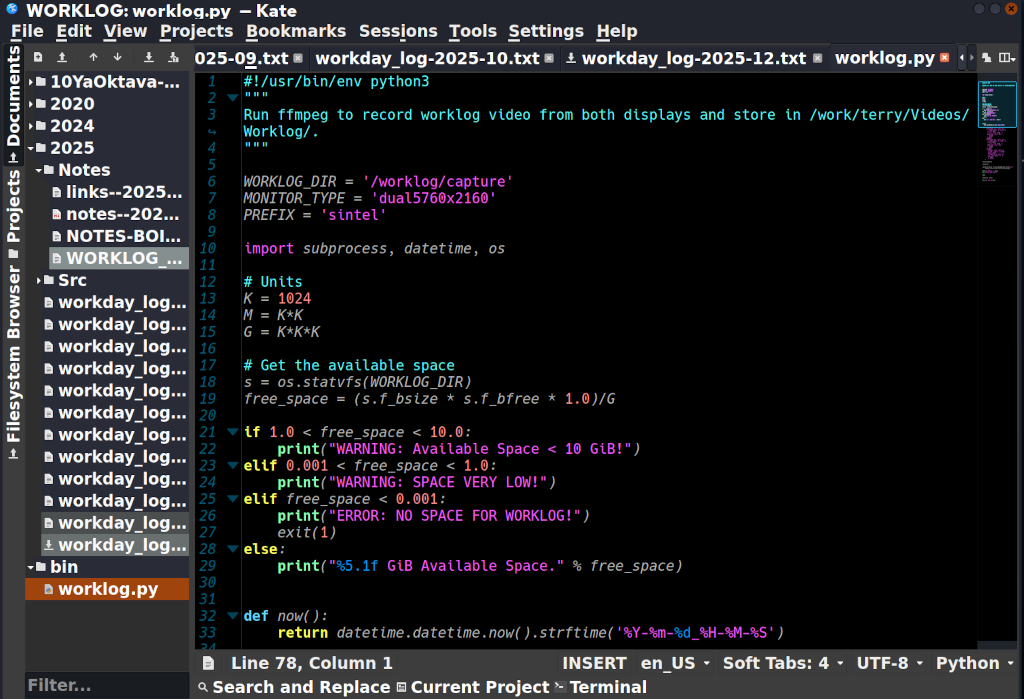
Kate
Hang around Linux and FOSS circles long enough, and you will encounter the Editor Wars, in which the battle of the ancient superpowers of Vi versus Emacs continues to burn in the dulled flames of their Cold War.
But some of us like cocoa, with sprinkles!
My favorite text editor is (horrors) a GUI application: Kate.
The “KDE Advanced Text Editor”.
It’s an excellent general purpose tool, whether you want to write in plain text, Markdown, HTML, CSS, or code for any of several dozen programming languages.
It lacks IDE-like features, such as test-runners or compilers, although you can add scripts to trigger from the “Tools” menu, so it could be used as an IDE with a little tinkering.
LibreOffice Writer
For documents that need basic word-processor formatting, like letters or screenplays, I use Writer from the LibreOffice suite. It’s a basic word processing environment and is highly-compatible with many document formats, though we prefer to use Open Document Formats internally (mainly “ODT” for text).

LibreOffice Calc
Behind the scenes, I have found a lot of uses for Calc spreadsheets (which I refer to as my “odious spreadsheets”, because they’re in “ODS” format).
In the screencap below from a doc, I was using it to establish the finishing state of various 3D assets.
I also use it every year for accounting for income taxes.

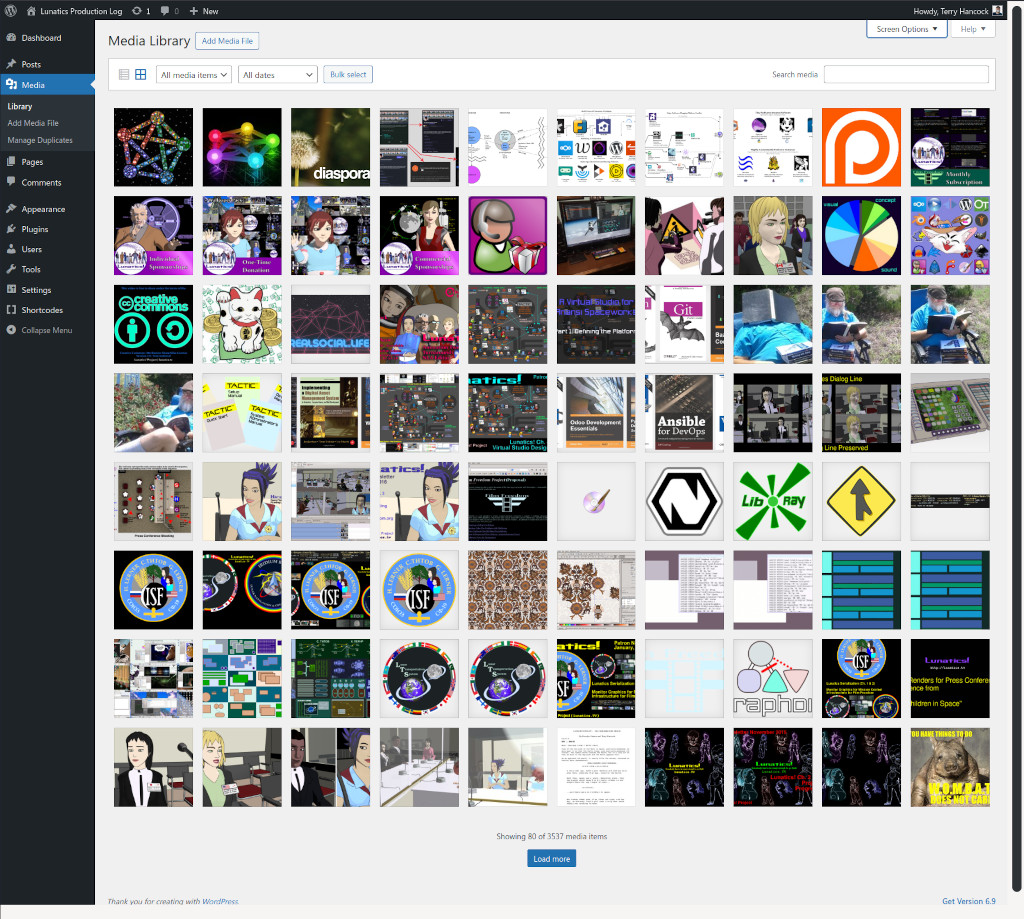
WordPress
Here’s a program I regularly use at least once a month when I write up my project summaries. And I’ve been using it for a little over ten years now.
It is both a blogging platform and a content management system, which makes it a very good hub for my site.
At current count, I have published 386 articles and 3537 images on this site. I think I’m getting my investment back on this one!
I currently get the program via YunoHost:
https://apps.yunohost.org/app/wordpress
That page includes links to the upstream sites if you’d rather install it some other way. There are MANY options.
Pelican
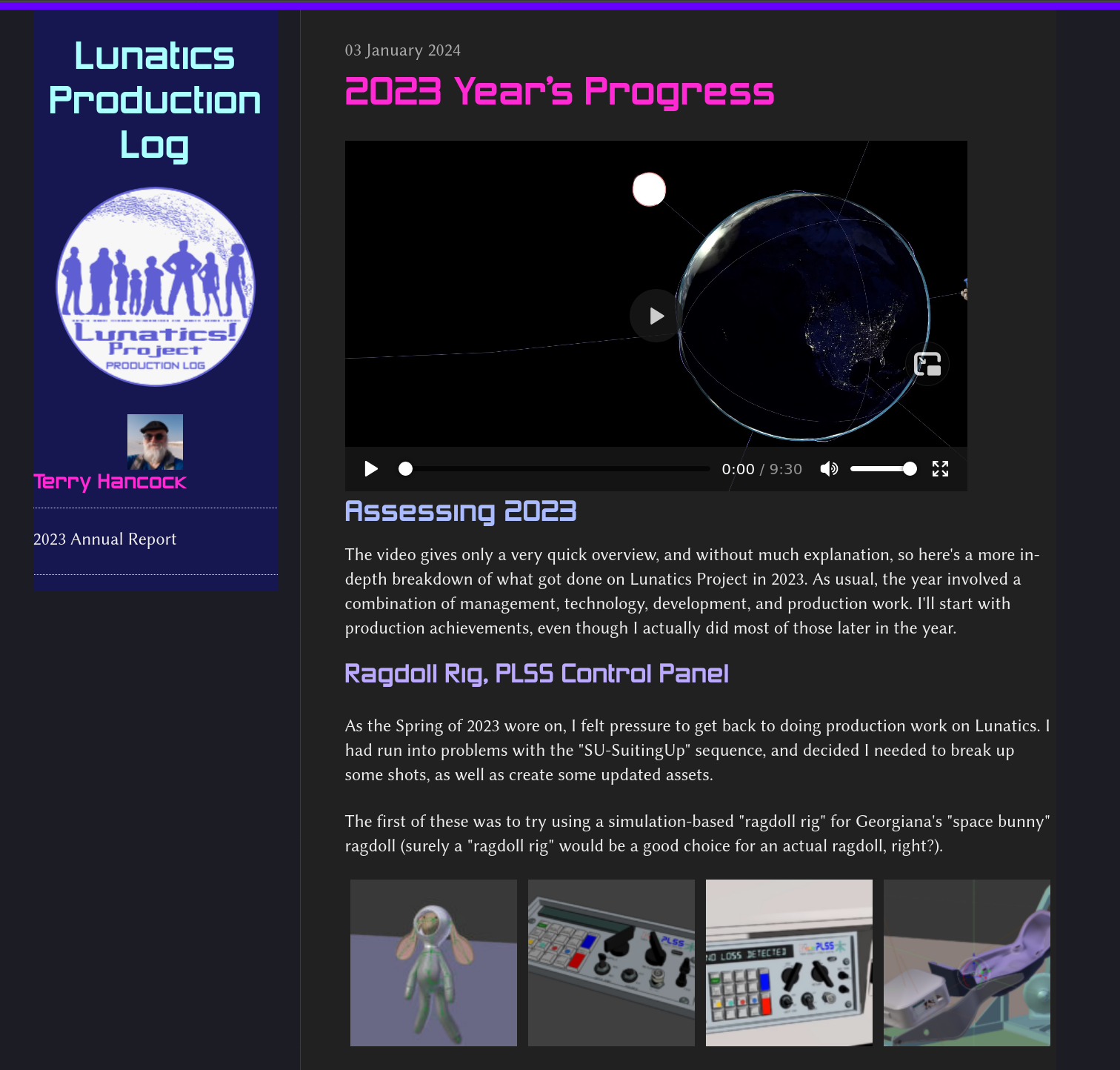
While I use WordPress for my live Production Log, I also keep annual offline permanent archives on M-Disc media. For these, I need a static HTML site that I can read offline with a browser.
There are a number of static site generators, but I use Pelican. Partly because I’m partial to stuff written in Python, and partly because it has a really good import utility to get the content from WordPress’s XML export.
I also like that I can add articles in HTML, Markdown, or reStructuredText formats.
https://getpelican.com/
https://github.com/getpelican/pelican
Nextcloud
Primarily thought of as a file-sharing solution, but actually, via plugins can be used as an entire office suite, much like Google Office, but with you in control of your own data and features.
I am currently involved in re-engineering this part of our site, so it’s not currently up, and will be a stub for awhile until I can move to a larger server.
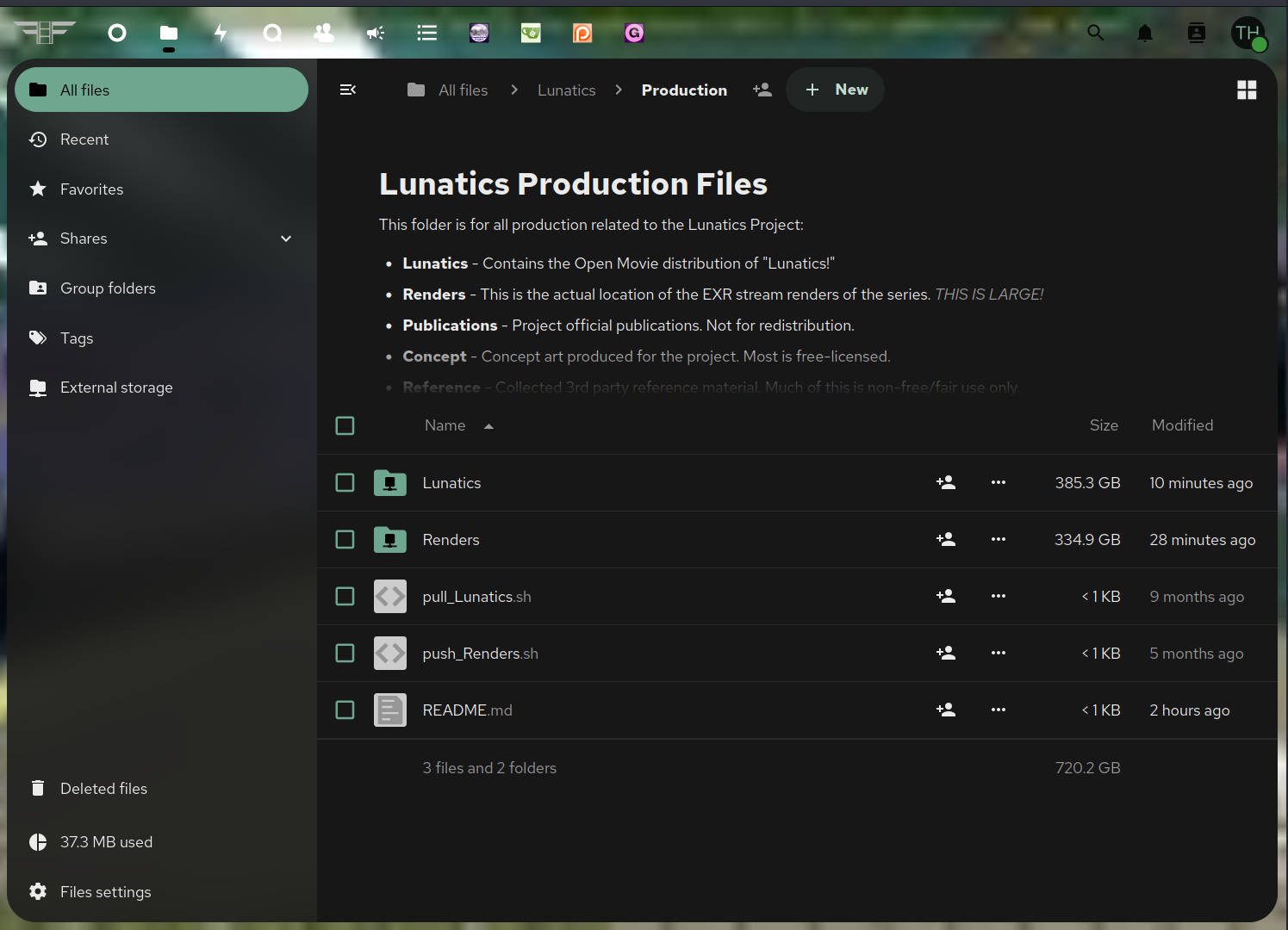
But this is a screen capture of our production folder from our testing server last Spring. The plan is for us to have our primary production sources integrated in Nextcloud via an “external folder”.
Infrastructure
Tools I use behind the scenes for managing files, websites, and so on.
Seafile
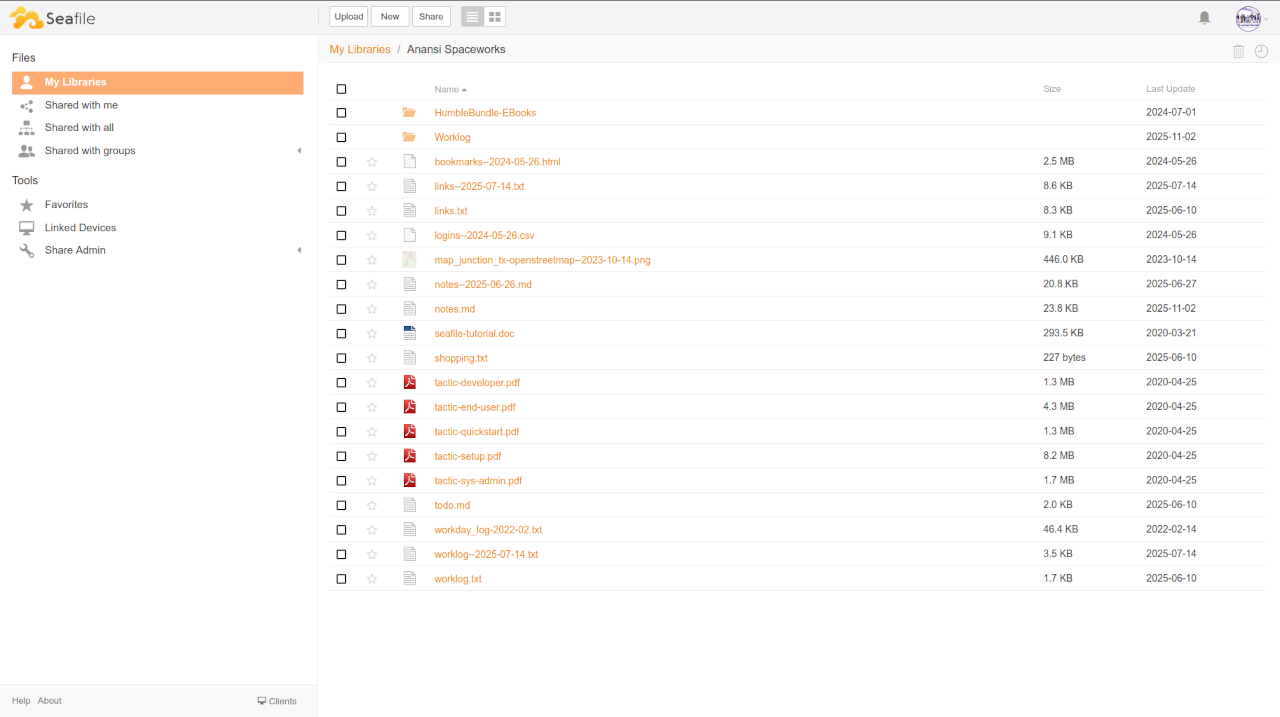
I like Seafile, it’s simple. It does one thing well, which is make it easy to share files between different machines. It reminds me of Google Drive before they junked it up.
And if you run your own Seafile server on your LAN, this is totally secure, without your data ever having to leave your control at all.
It’s weird that that has become a luxury, but such is 21st century corporate-platform computing.
Anyway, none of that with Seafile running on your own LAN. I run it on my household file server, with clients on my phone and my workstation.
For several years, this has been my go-to solution for transferring photos and note files from my phone to my workstation, where I edit my logs.
https://manual.seafile.com/latest/
https://www.seafile.com
YunoHost
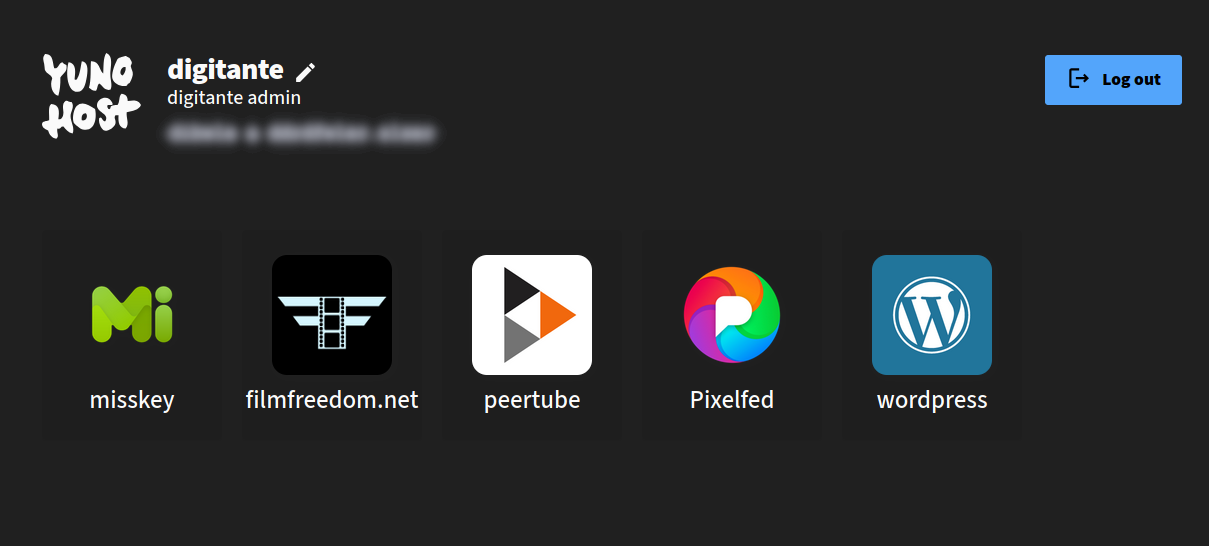
This is technically more of a distribution than an individual software. There’s a portal, and a large volunteer packaging effort to create apps for it. And a large catalog of applications already packaged.
I definitely rely on it. So I’m counting it.
YunoHost is how I have WordPress (which I’ve already mentioned) installed — along with other software I haven’t got to yet.
It is based on Debian Linux: a particular install with applications already configured to work on it, pretty close to “plug and play”. It’s like the packaging systems for Linux desktop systems — but for the Internet.
It makes managing a web application site SO much easier. I decided to adopt it as the basis of my “virtual studio” instead of trying to write something new.
Firefox
Finally, since I’m trying to mention the stuff I use everyday to the point where I almost don’t see it anymore, it’s worth mentioning that I spend a lot of time working through a web browser.
I’ve been using Mozilla-based browsers since Netscape, and I still do.
And a LOT of my time is spent using the browser, whether socializing on the Fediverse or managing my server.
Despite the current kerfuffle over Mozilla incorporating opt-out AI features that no one wants, I think they are still the best option. Perhaps I’ll have to tinker with my settings, or perhaps I’ll use one of the several available forks — but it’ll still be Mozilla underneath.
Also, I think it is critical to retain an ecosystem of multiple browsers, rather than a single approved one. We saw the dangers of that with Internet Explorer, and we see it now with Chromium dependencies.
https://www.firefox.com
https://www.mozilla.org
https://firefox-source-docs.mozilla.org
Of course this is still not an exhaustive list. There are many other software packages that I have used in the past; some I hope to use in the near or intermediate future; and some I have really only speculated about using. My focus here has been on software that is a critical part of my workflow, so I use it pretty regularly.
 Share this post on social media.